The system allows for remote Auditing of an Adviser and his client files, activities and shared notes so that an Auditor can get a complete picture of the Adviser.
To audit an adviser go to the management tab on the top right hand of the screen.
The next screen will have a series of options for you to consider, click on Manage ARs tab.
You now are presented with a search option for ARs.
You may search by name or leave the field blank, please note, the more information you provide the quicker the search function is.
Once you have selected the AR that you wish to audit you will see a view not dissimilar to a typical clients view with all data reflecting the activities of an AR as opposed to a client.
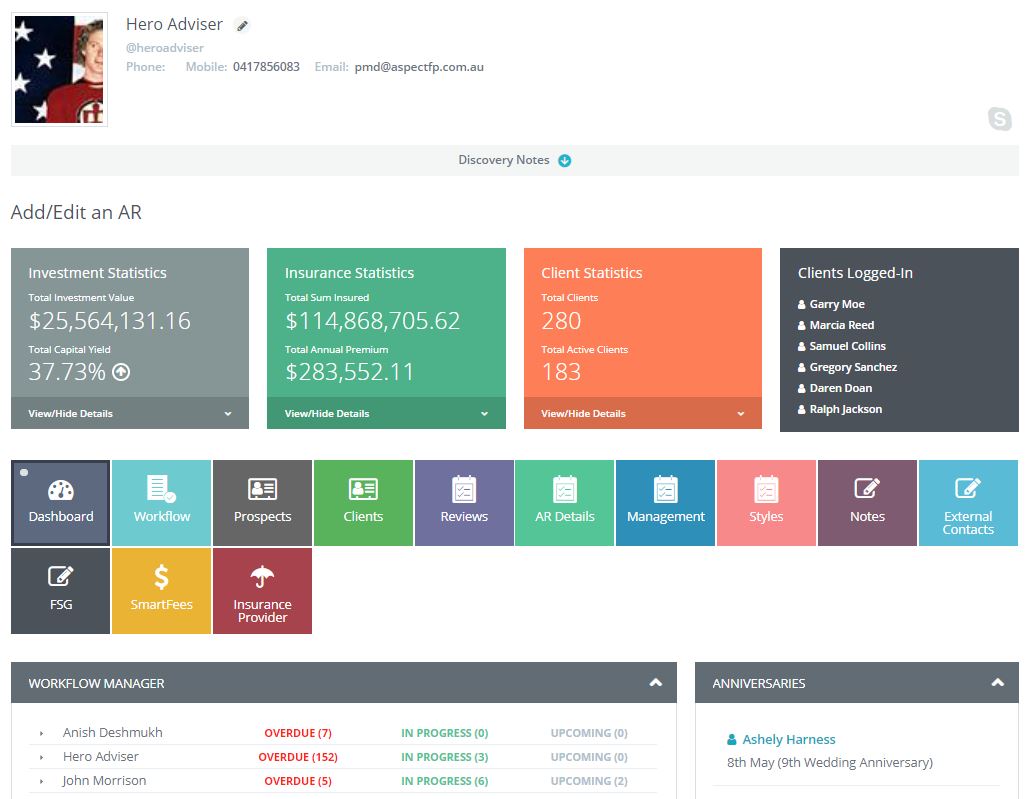
Just as in the client view, here you can click any of the tabs to get a complete understanding of the ARs practice position.
You can view:
- FUM position
- Insurance position
- Client position including position breakdown that includes risk profiling
- Activities of clients
- Breakdown of Insurance Providers
- Breakdown of Fund providers
- Rate of fees charged and against which client
- Version of FGS
- Number of Reviews completed and pending
- You can view, including full activities of the workflow actions of the AR
- Level of Client Prospects within the practice
- Complete client list
By selecting a client file for auditing you are taken to the 'live' client file of the AR. This means you will be viewing files that are active from both a revenue and advice position
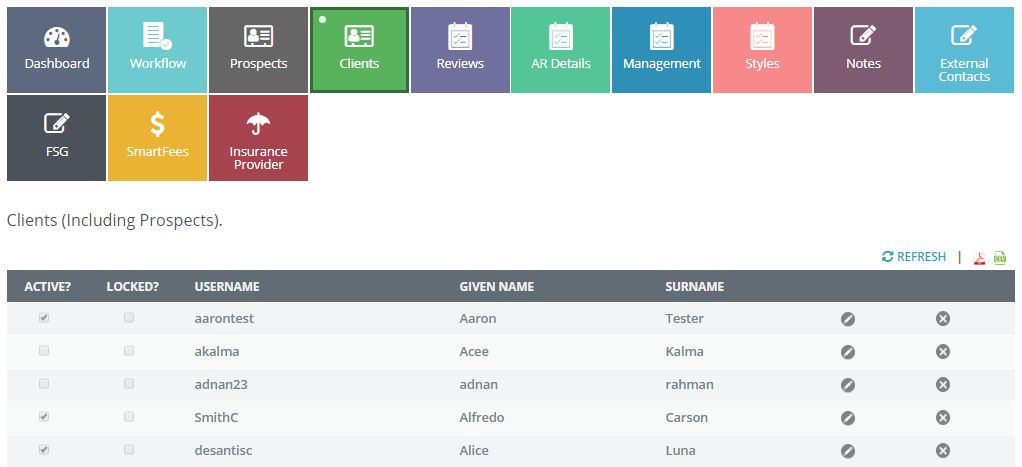
You will notice two initial file types;
- Active - as the name suggest, active is a live operating client
- Locked - means that this file, though an active client has been suspened for some reason. Reasons could mean, incorrect password, no payment or technilcal reason. It does NOT reflect a decactiviated client.
Select the client by clicking on the edit pencil ICON closest to the surname of the client you are taken to the complete client file and just as your AR can edit and view all the file history and activity you will be able to do the same.

0 Comments