The system has advanced client partitions built within the portal so that one AR cannot view the clients of another AR even if they both reside within the same office.
This has been developed to achieve complete privacy from a clients perspective.
Even though this is the case you can allow for one support person to support more than one AR.
To do this simply;
- Click on the Management tile at the top of the screen.
- Then select the Manage Staff tile.
- Next enter the staff member name you wish to edit - if you do not have a staff member created, then go to Add a staff member on the top of the screen and follow the instructions.
- Select the Staff Details tile.
- The next screen you view should look like the one below.
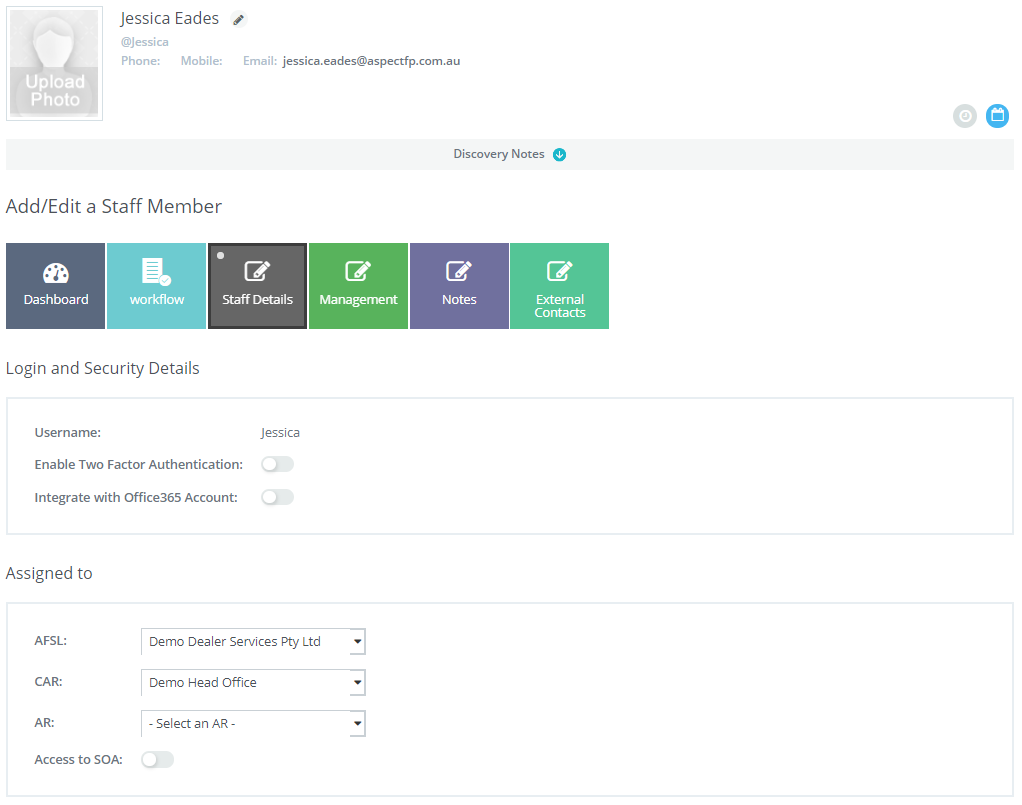
You will notice on the above screen no AR has been selected, when no AR is selected, the staff member will be able to access all AR's client files and all AR's will be able to assign Workflow tasks to the staff member.
To select an AR simply use the AR tab and click on the drop down arrow on the bottom of the assign screen and make your selection. When completed, that staff member will only be able to work with the selected Adviser.
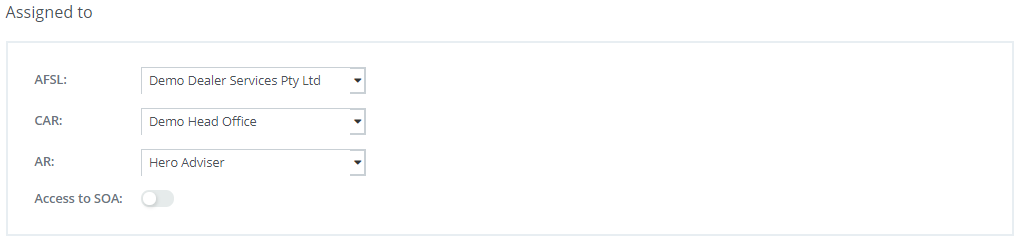
Next select Update, This staff member now has access to all the client files relating to that AR.
0 Comments