The system allows you to ability to 'Piece together' an SOA based on subject matter.
You will notice that each App with its range of Graphs and Calculators also has the same three tabs. These Tabs relate to creating as SOA.
For example;
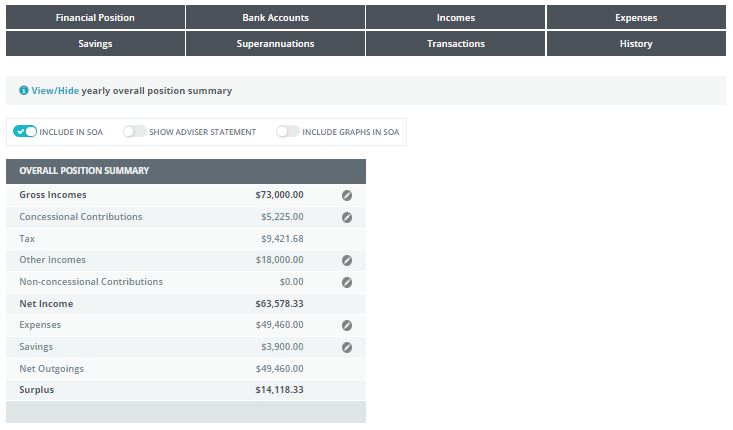
Within Cash Flow manager to see the SOA option simply click on the View/Hide hyperlink on any of the options you have before you.
What will happen is that the section you wish to view will expand and on the top line of the section will be the SOA option.
The headings are: Include in SOA - Adviser Statement - Include Graphs in SOA
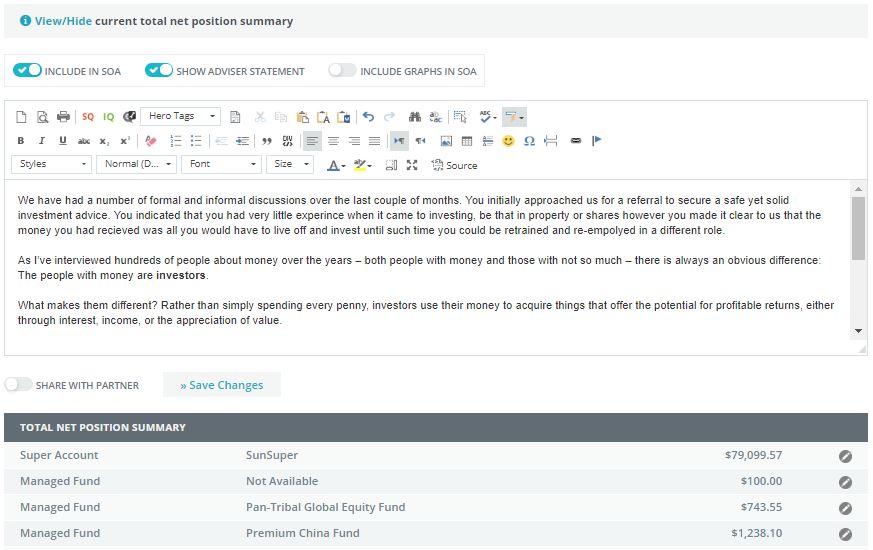
By clicking on "Show Adviser Statement" of the SOA options the screen will expand again allowing you to author or add QuickTEXT to generating an SOA.
0 Comments