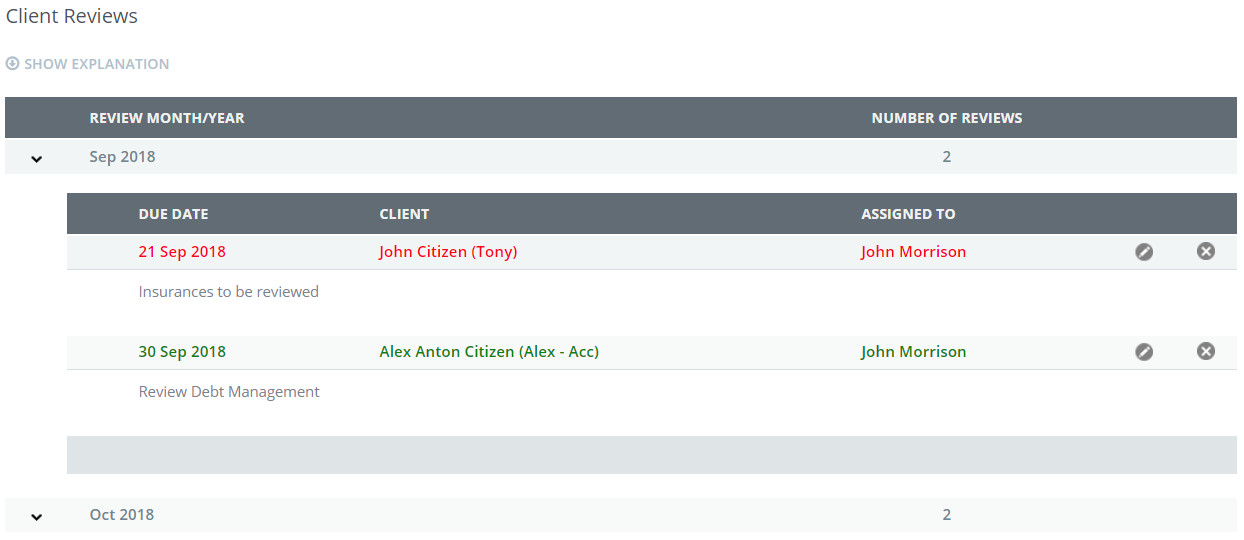
You can schedule a Review appointment and have that monitored by going to the Review section of the Dashboard and also from your client file.
Or you may select to nominate or complete the review from the Client file.

The monitoring of the Review is colour coded, Green is Pending, Red is overdue and Black is completed.
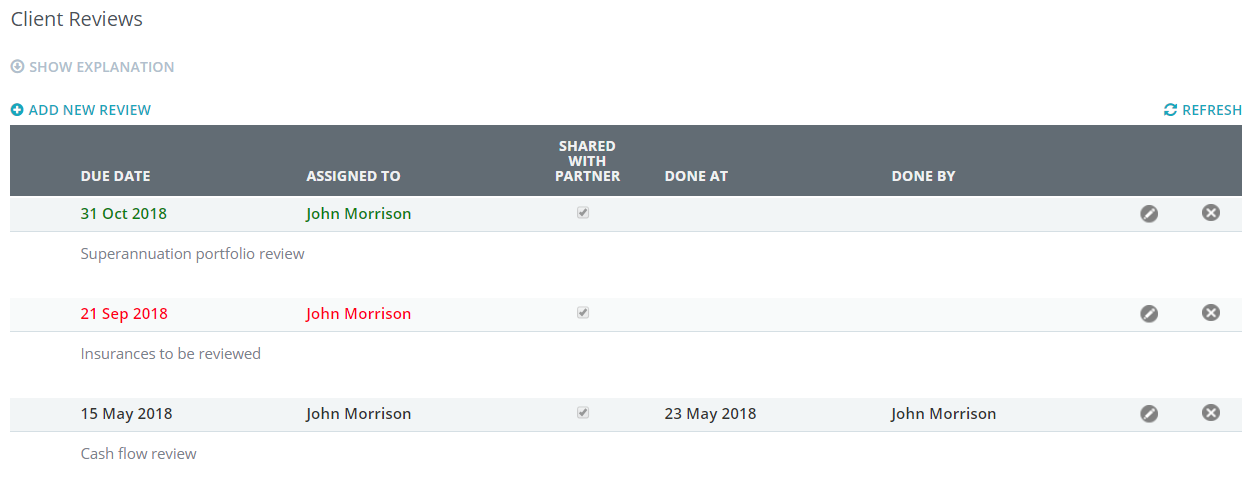
Entering data into the Review process
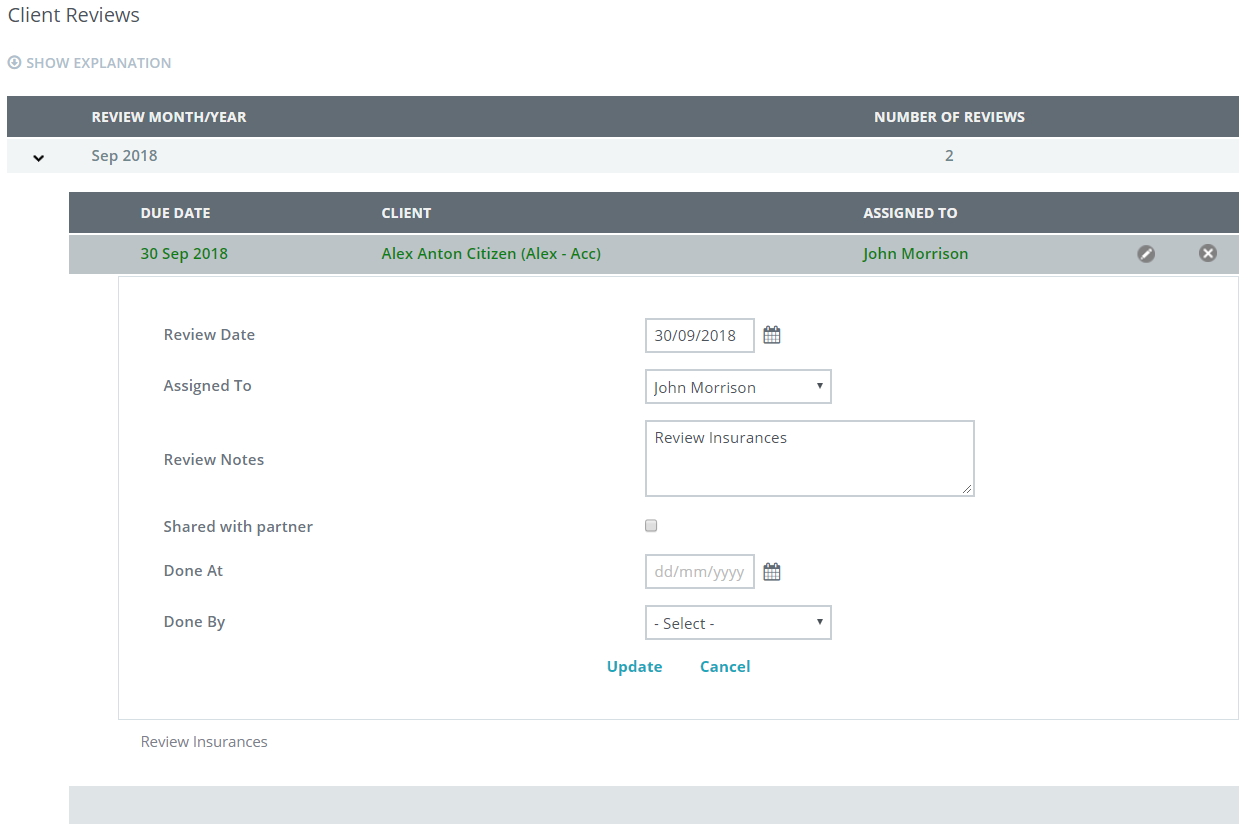
Once you are in the Edit display (as above) you have the options to confirm;
- Who the review was assigned to and can change the nominated adviser.
- Review notes, this is a fully expandable section to accommodate any range of notes
- If they have a partner and you have conducted a joint review you can automatically share the notes in that partners file.
- Confirm the date that the review had been completed
- Confirm who it was actually completed by
- Up-date the file and have the notes automatically forwarded to the Client file notes.
0 Comments