Now that you have access to the system you can add a new client.
To start click on add New Client.

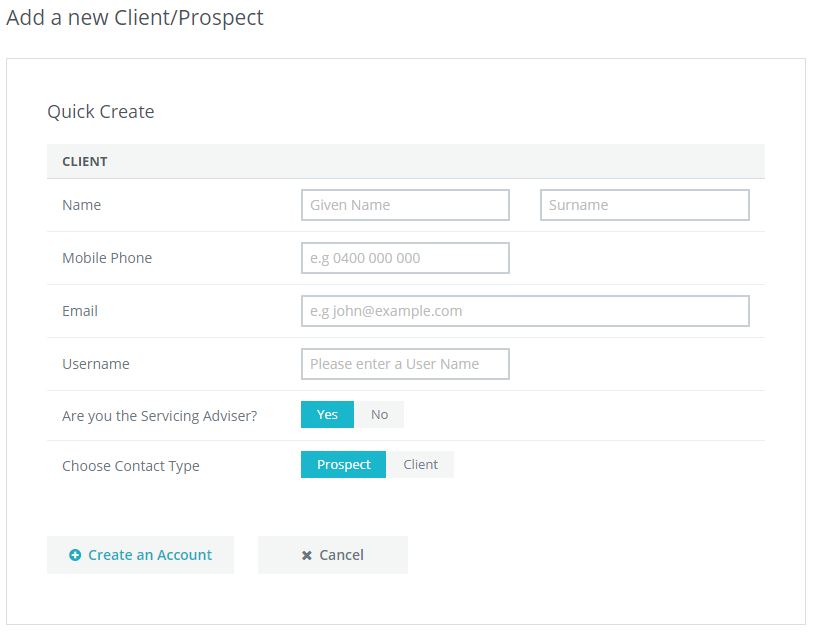
Once selected, you will see the below screen.
Simply enter first name, last name, mobile number, email and create a Username.
Select "Yes/No" to the question of "Are you the Servicing Adviser".
If you are not the current servicing adviser within your office select the adviser from the drop-down list. Note: The option of Servicing Adviser is only reflective of your office and not external advisers.
Now select the contact type "Client or Prospect" and then select "Create Account".
Now that the Client/Prospect file is created, you will see a confirmation screen with 2 options "Go to Client Dashboard" or "Complete Fact Finder", select either option to navigate to that area of the new client file.
If you are not entering Fact Finder information, you may wish to complete the client's personal details eg; DOB, Address, Home/Work contact details, Set as the main Contact, etc.
Simply select the Edit Pencil beside the client's name within the client file to access the CRM functions.
0 Comments