From your Dashboard click on Management.
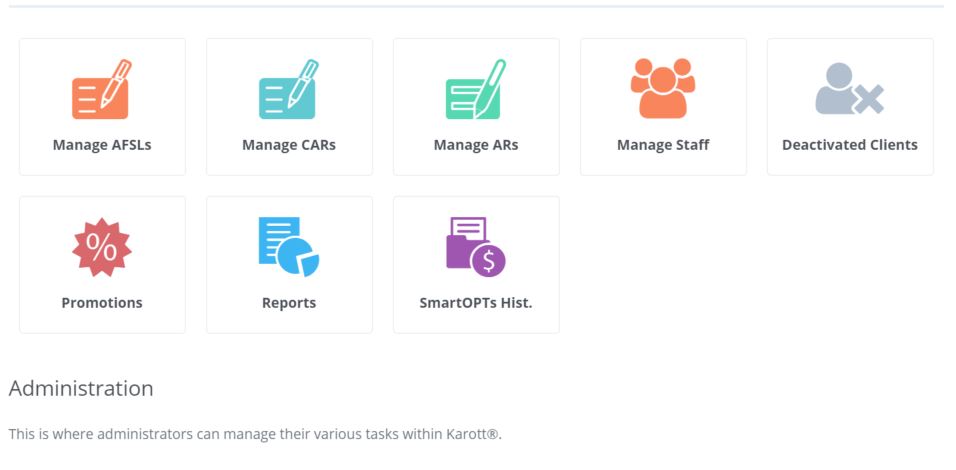
You will now have a a range of ICONS to chose
Click on Manage ARs to create an AR or click on Manage Staff to create a Support Staff access.
For managing or creating an AR click on 'Add a new AR'
The steps of adding an AR are logical.
1. Assign the AR to the AFSL
2. Assign the AR to a CAR (if applicable)
3. Answer and Enter the details on the screen
4. Enter the AFSL fee charge rate
5. click on ADD
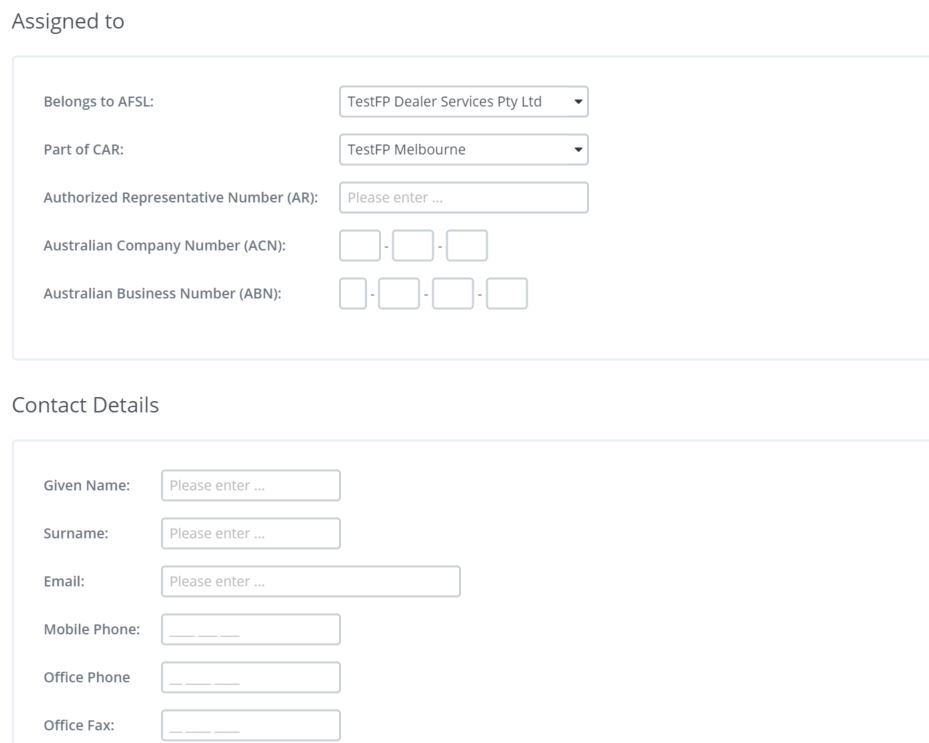
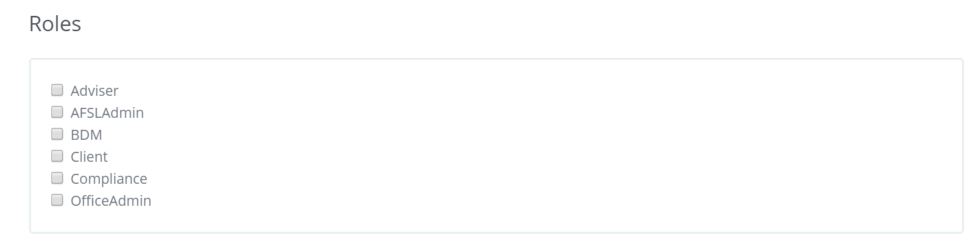
The process for adding a Supporting Staff member is the same as adding an AR except for the assigning of Roles to the staff member.
You have the option of
IMPORTANT NOTE: Once you have created a support Staff member you must link that support staff member to an AR so that the staff member can view the ARs files.
0 Comments