Before you can use the system you need to set yourself up as holding a role within your practice.
There are key roles that each interlink with each other and you can be more than one role depending on the size of your practice.
When you first login you will see your dashboard, from here you need to click on the Management tile within the dark grey bar at the top of the screen. Selecting the Management tile will display the screen below.
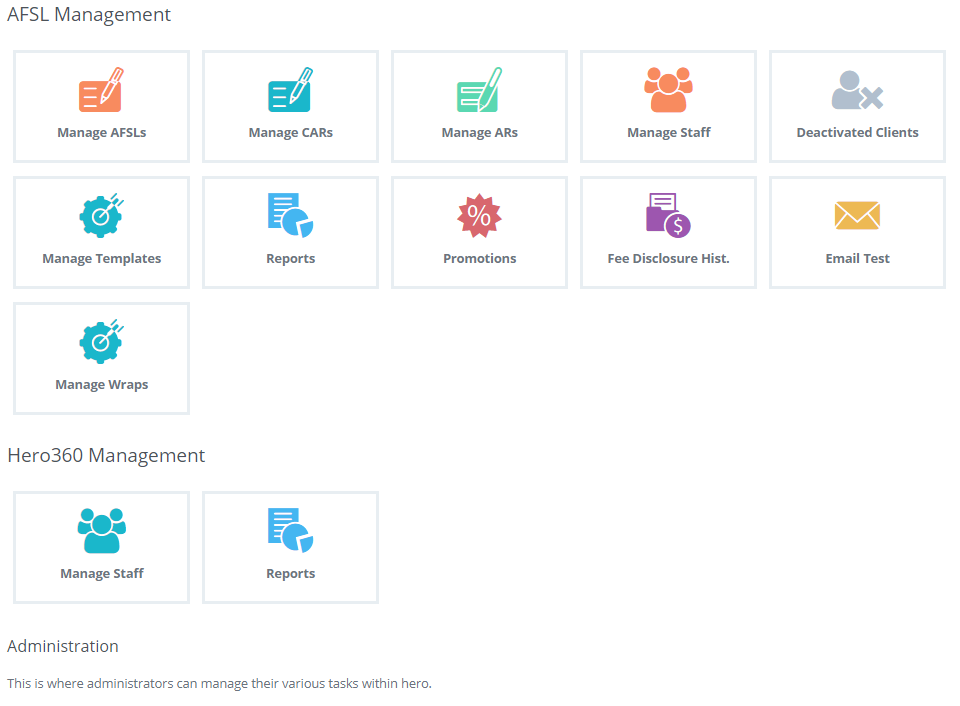
This Tab gives you a number of different options to manage, click on the Management option you are seeking.
For example, we will assign an AR therefore the first Tab would be Manage AR as that is the logical process in the steps.
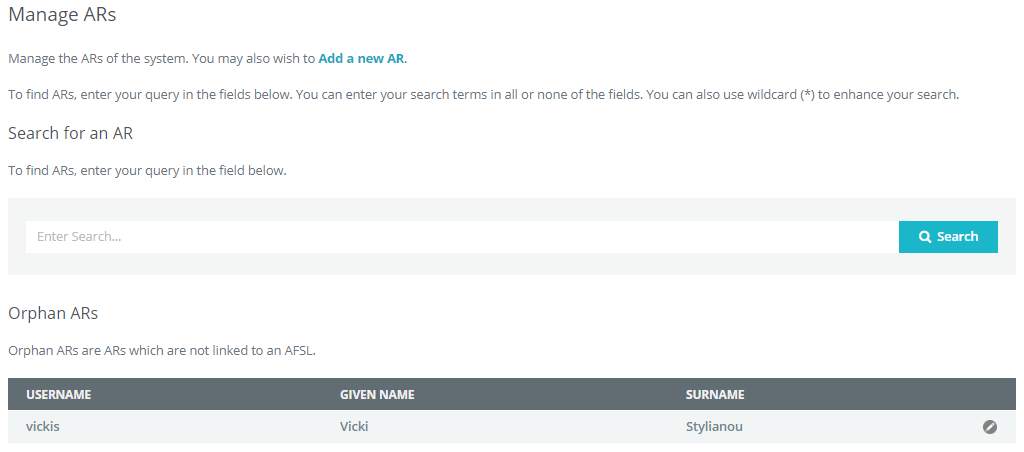
If you are part of an AFSL endorsed program you can search by your name, if not, you will need to click on the green Add a new AR hyperlink.
When you click on the Add a new AR you will see the basic contact information and also if there is a charge for the AR to be part of the AFSL, this is defined as a percentage.
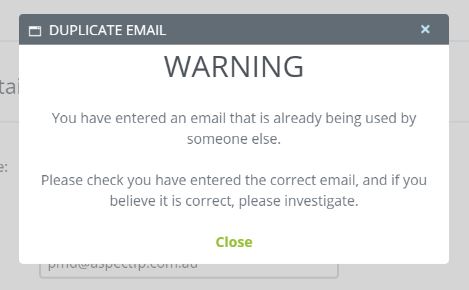
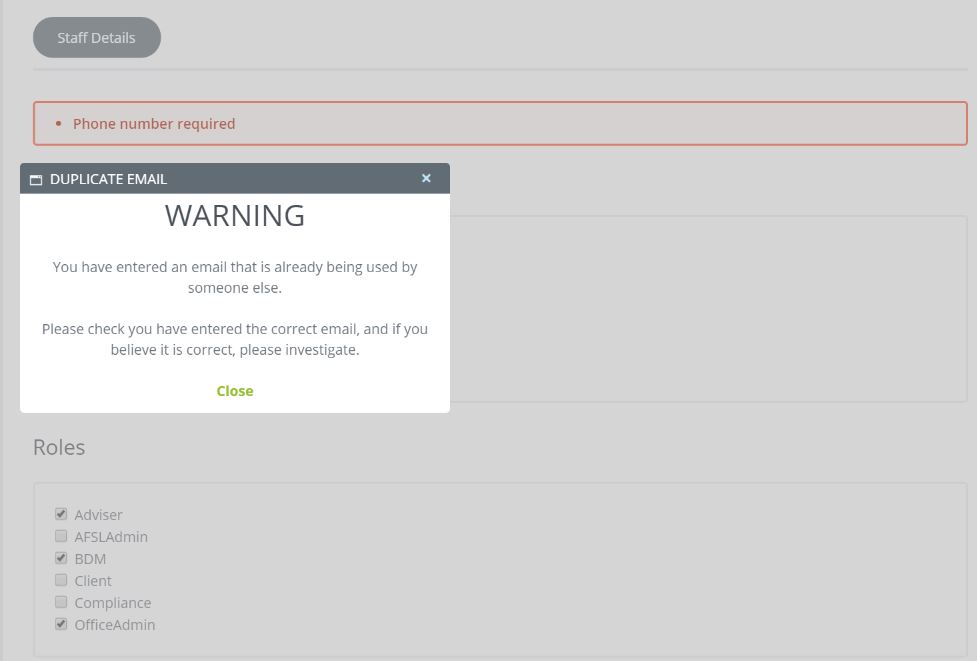
If you enter an email address that is already in use by the system you will receive an alert notice suggesting to check the nominated email address.
Note: This warning notice does not STOP you from using the nominated email address, rather it is only a warning that you have already have that email in use.
Note: It is mandatory that you enter in the AR number into the system, failure to do so will not allow the AR to be added.
Once you have completed the requested information click on the green ADD at the bottom of the page.
You will then be taken back to your Dashboard and the AR password will be displayed in a green banner
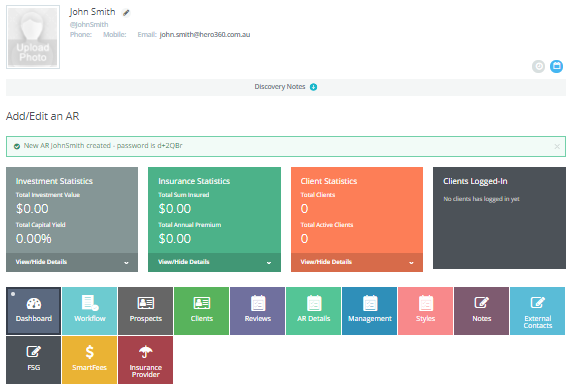
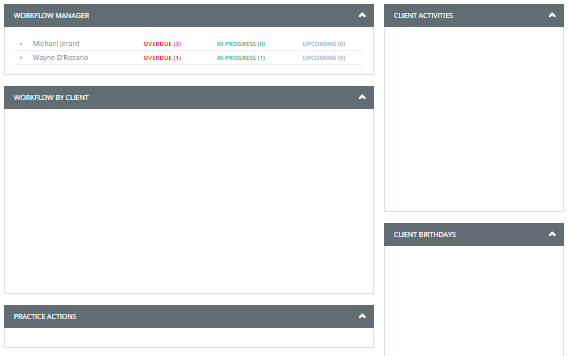
You will notice that the AR user page is the same layout as a client file page layout.
Here you will see everything that happens with any of your clients, either by you, your support staff or by your clients.
To add supporting staff to this AR you need to follow the same steps however you start with the Manage Support staff Tab.
You will add a new section that requests the type of role this supporting staff holds.
Note: The system will ask for contact and office details, this is done to accommodate those Advisers who may use an outsourced Admin/Para planning support office.
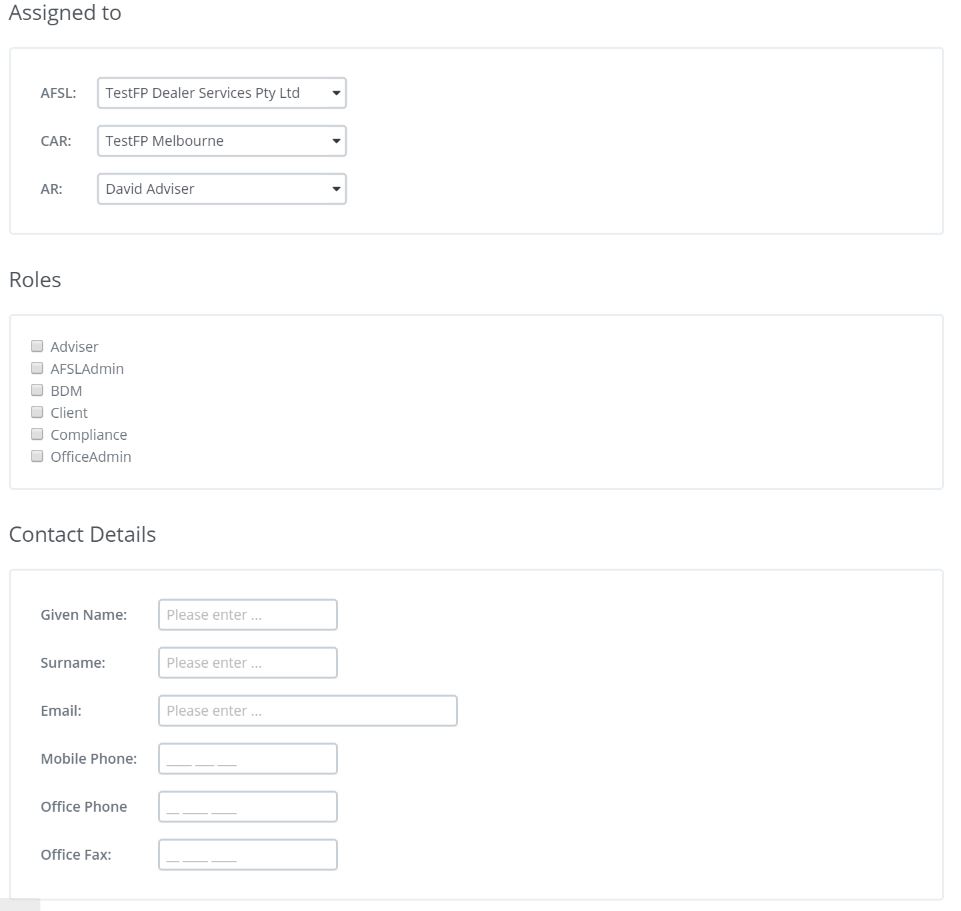
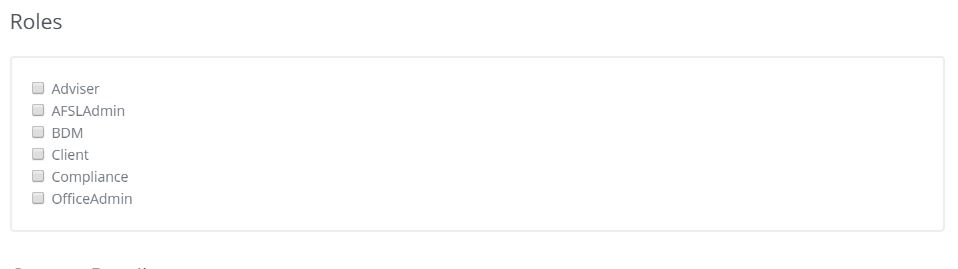
Understanding the Roles within the Support Structure
Note: Remember to Add the phone number & email address
You will notice that the Supporting Staff view is the same function as an AR view
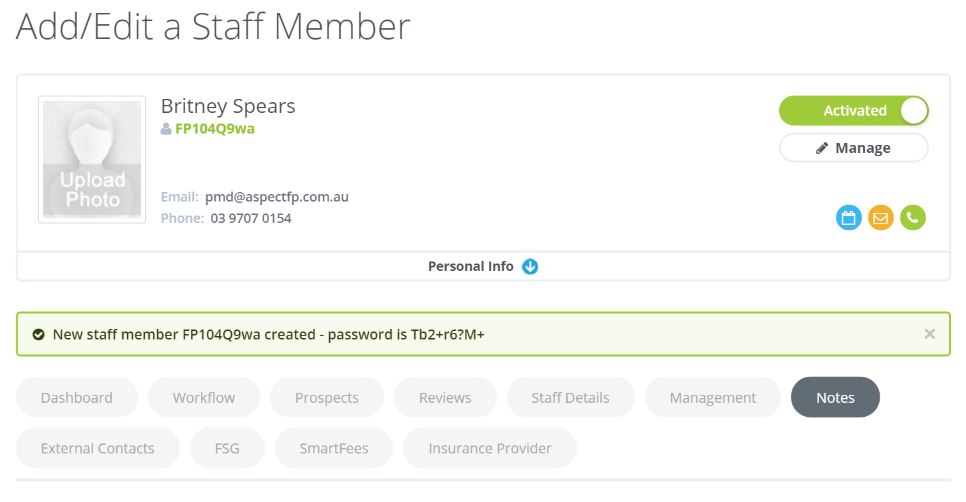
As the Supporting Staff is part of the Practice that staff member will be able to view all the staff to which they have been assigned to.
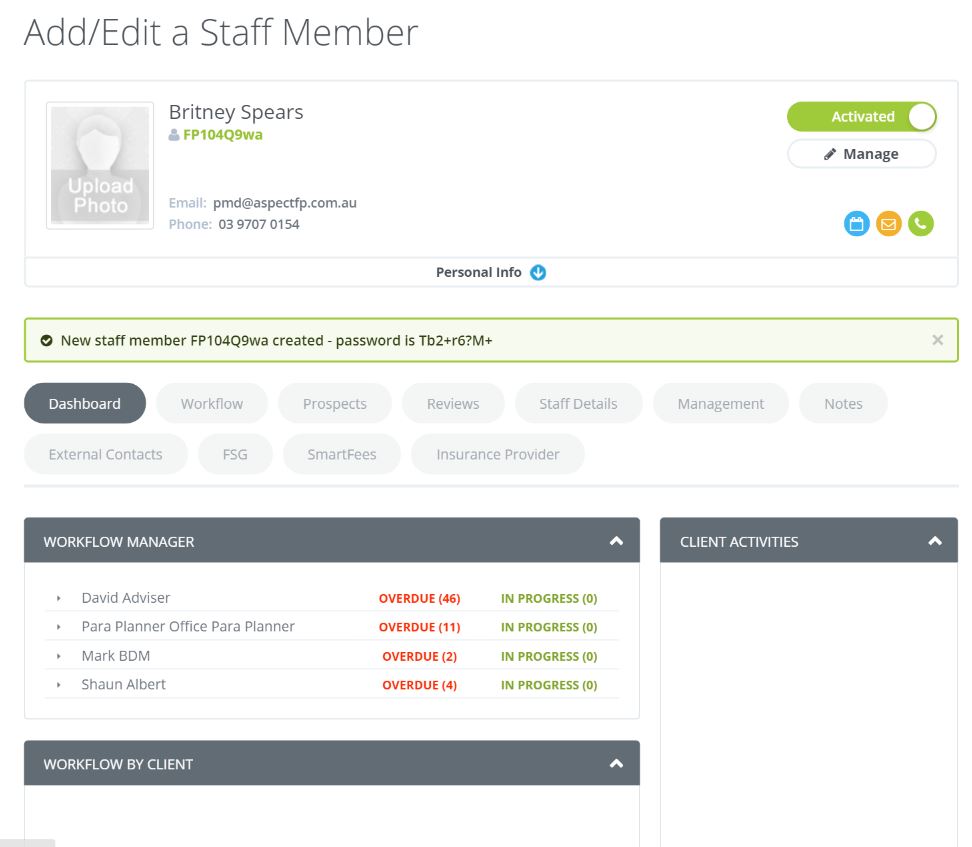
Note: The above view shows ALL the staff within a practice and is only available to the member with the highest security level, in this example that is the Snr Adviser.
0 Comments