Once you have written the App text for your SOA you need to finalize the document.
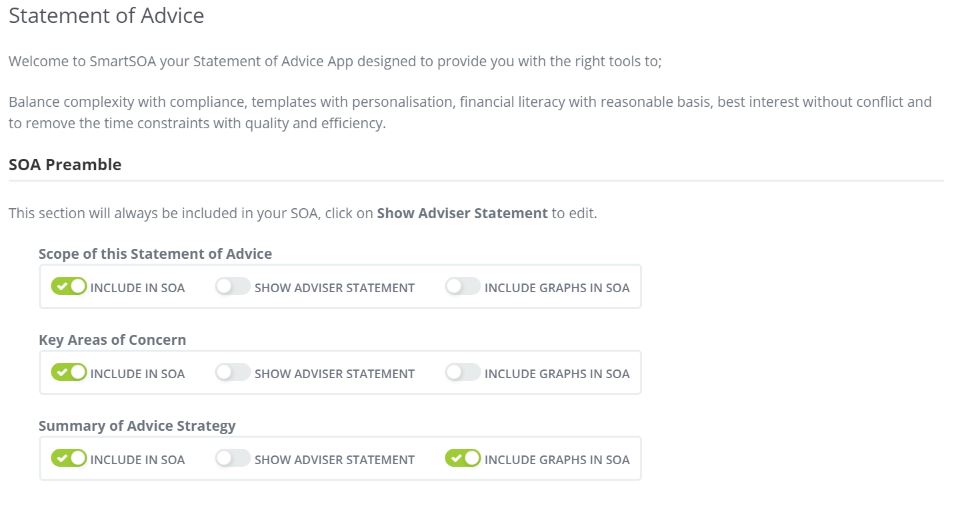
This means you need to write the preamble and additional notes that you want to have in your SOA.
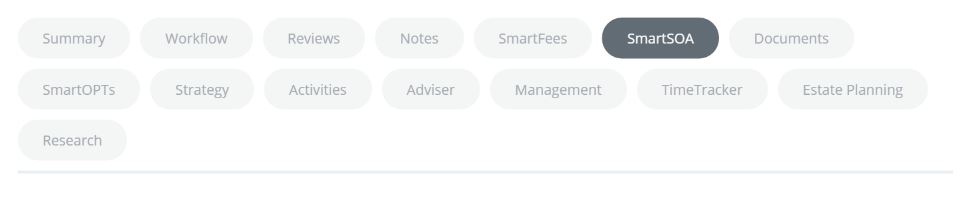
To do this click on the SmartSOA Tab in your Summary header
This action will display a complete screen detailing the last of your SOA actions required and just like before you have complete access to QuickTEXT.
In addition to the above you can also edit the calculation and graphics position of your SOA. Simply click on the items that you do not wish to include.
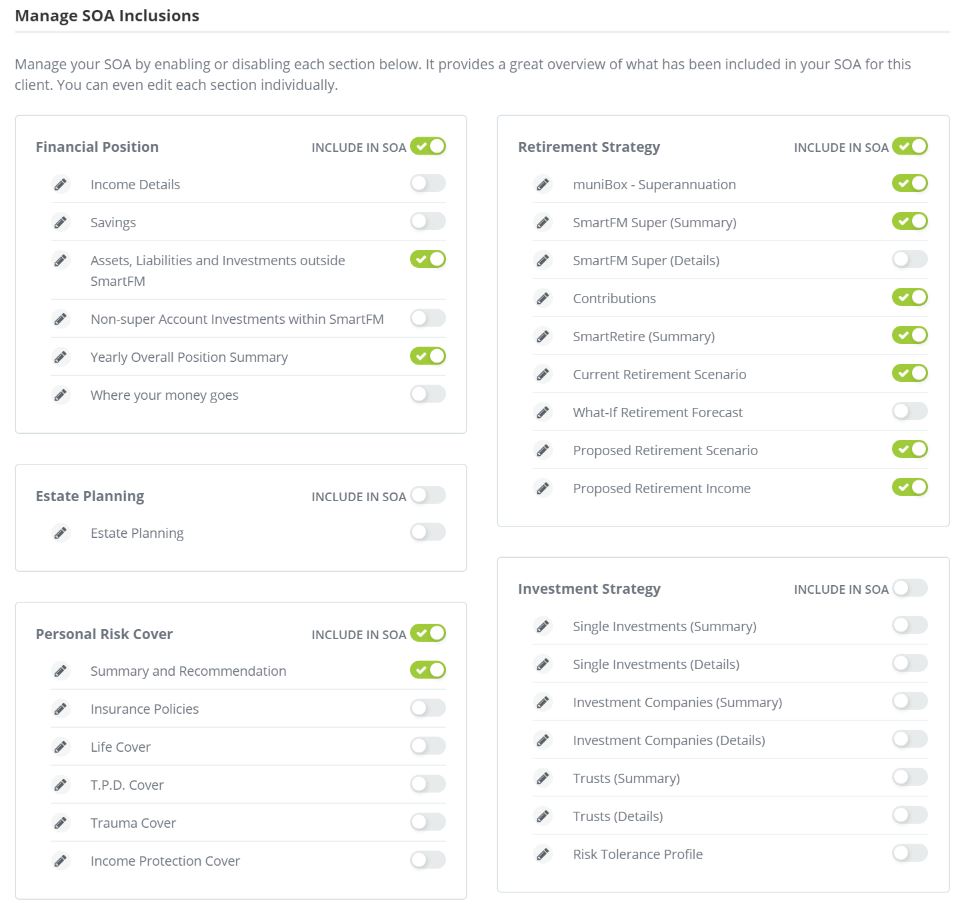
Once you are done with editing your inclusions or exclusions you are now ready to view a draft of your document.
To do this simply click on the create SOA Tab

The process should take approx 45 secs for a detailed SOA to be published.
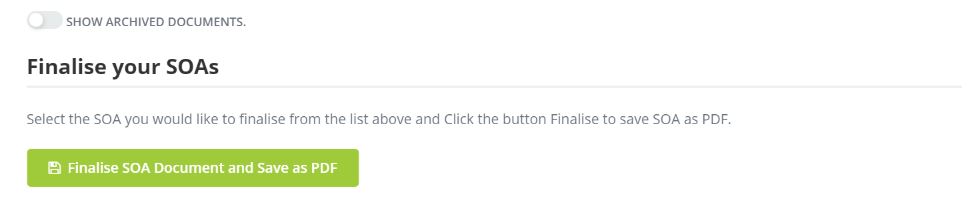
To view the SOA simply click on the view ICON which will activate the system to download the file in MS Word for final editing or if you are happy with the results click on the Finalize SOA Tab and the document will be converted into a PDF file for printing and sharing with your client.
Note: There are many options built into the system that once known makes the configuration and management of SOA generation fast and effective.
0 Comments