Research within three clicks
You will notice that you have access to an expanded version of our Investment Funds comparison tool.
Q. what type of investments can you compare?
A. Over 37,000 investment types from single ASX stocks to complete Managed Funds and everything in between.
So lets get started.
This is the most advanced version we have released to date and offers the following:
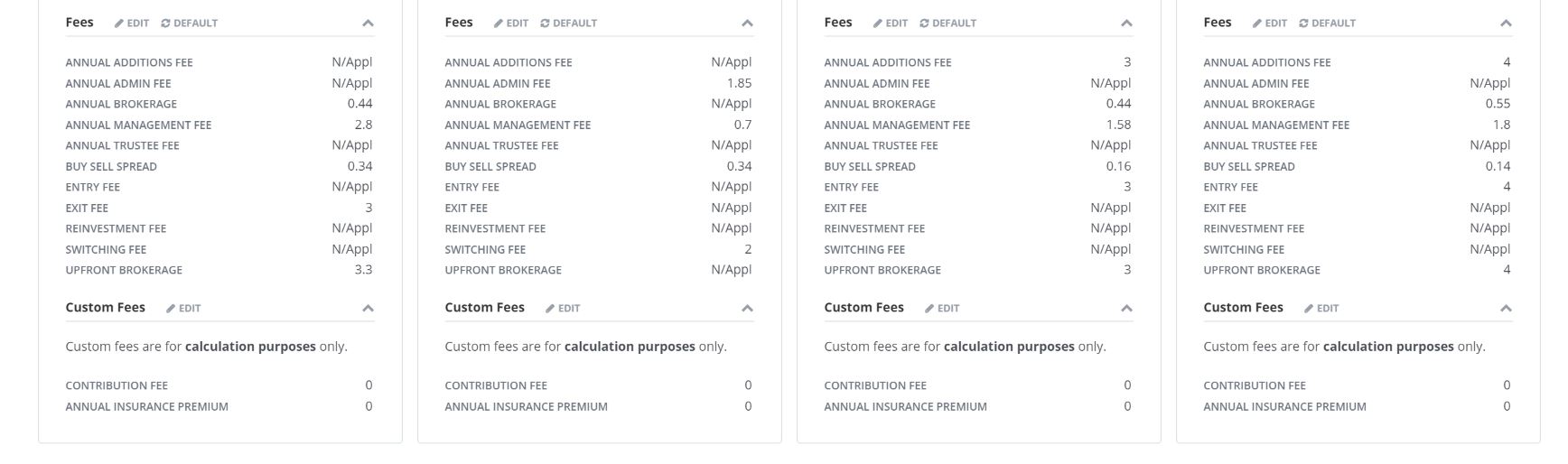
- All reported Fees and charges
- Unlimited comparison numbers
- Integrates with our Superannuation calculator allowing you to compare the outcome against a wide range of factors, including having a break from work option.
- Direct import into your SOA so as to save you time and resources.
Just like the original comparison tool you first have to select the investments you wish to use.
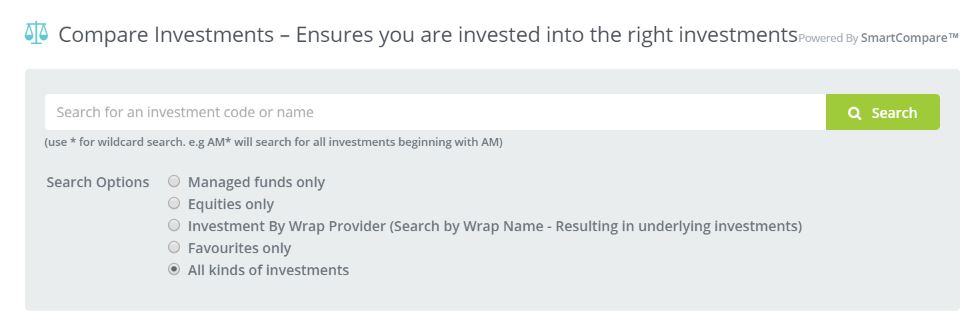
This internal search engine will complete a list of investments that are within your APL or allow for external searches for additional investment options that you wish to consider.
For this example we conducted a search of IOOF funds and listings - within the screen shot below you will see just how many you are able to return to view.
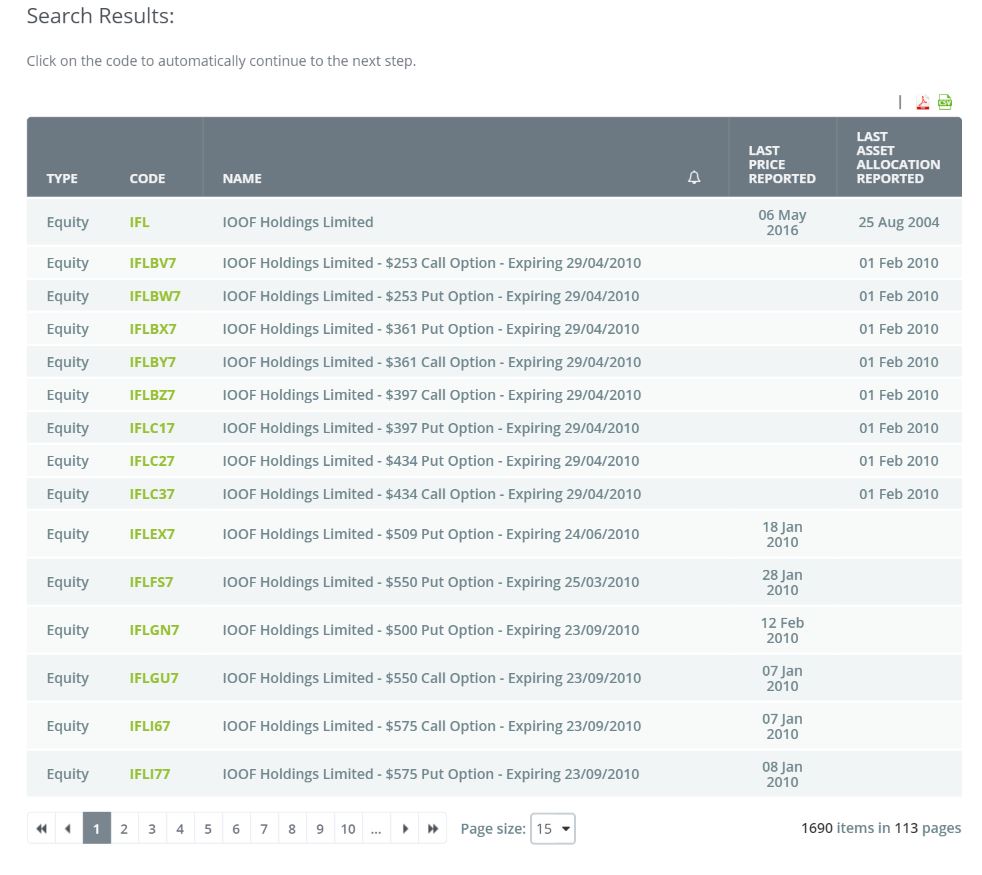
Once you have selected and linked the investments to your client file, you can now compare the investments.
Note: linking the investments to your client is done by placing the file in a 'Watch List' position and does not link the investments to your clients portfolio until such time as you are ready to complete a transaction.
In the watch list below you will see we have selected 4 investments to be compared.
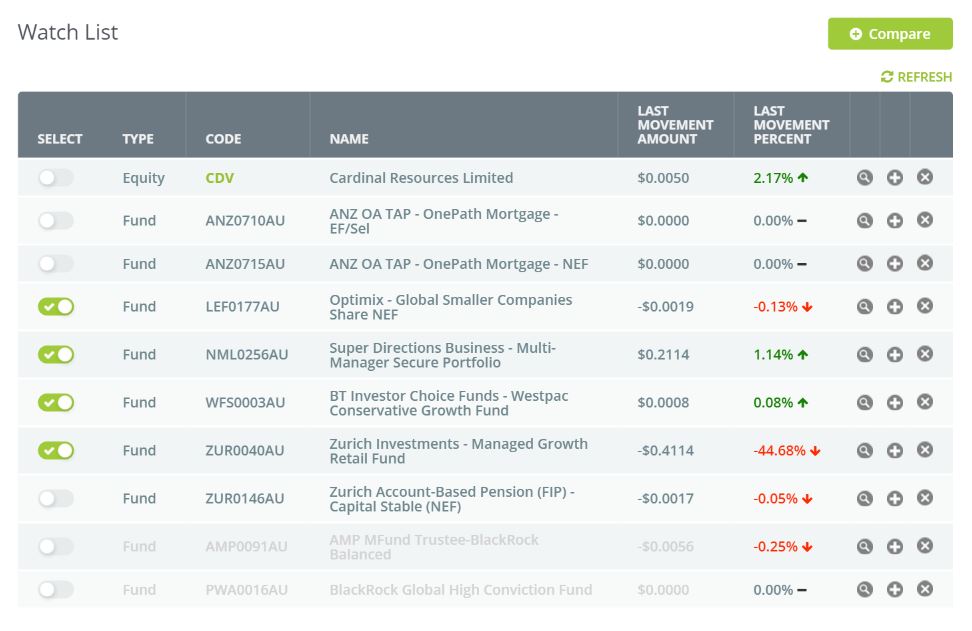
Now we click on the Green Compare button on the top right hand side of the screen.
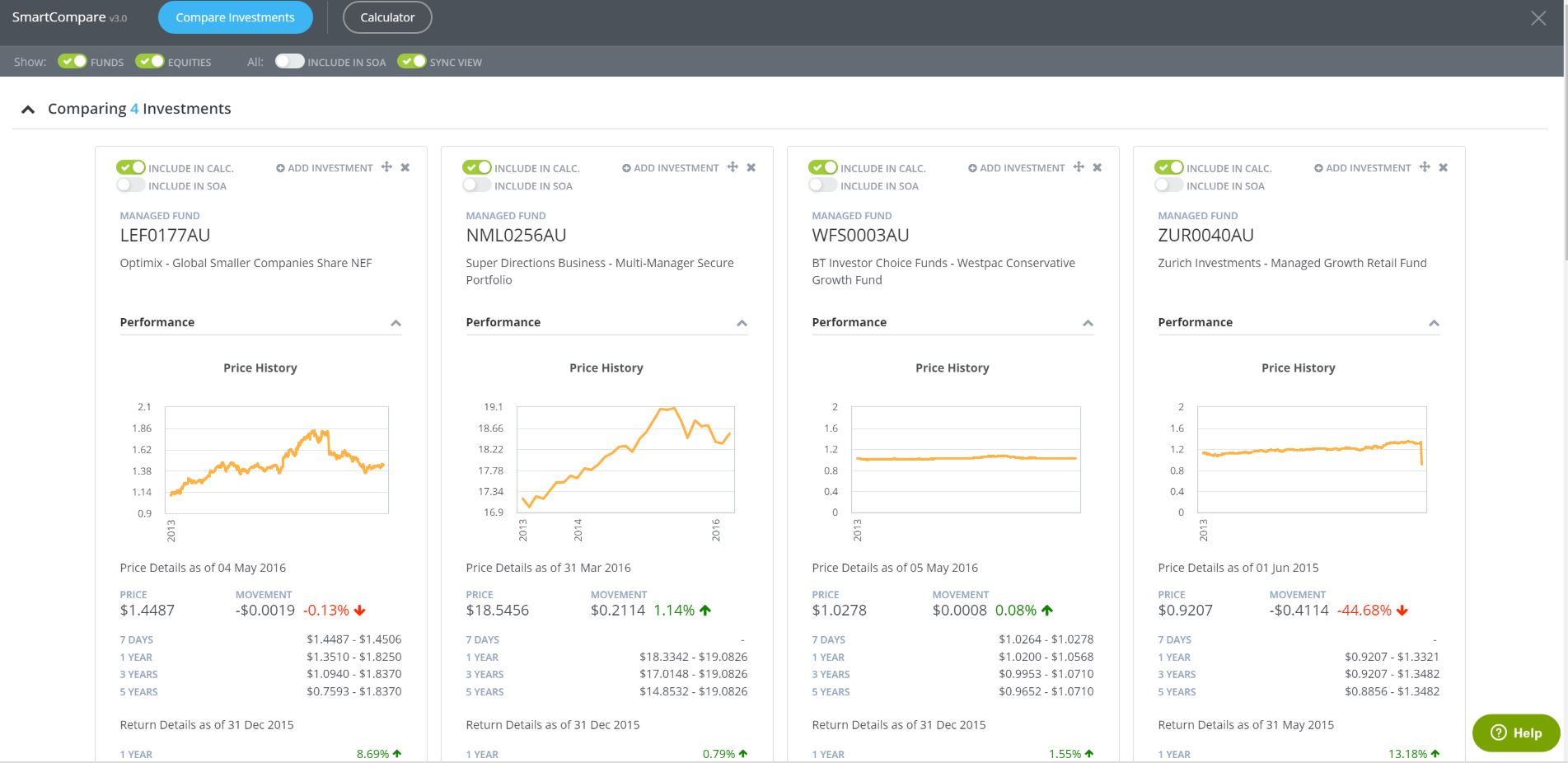
Now you have unlimited numbers of investments you can compare at any given time and have these funds allocated for calculation reasons.
Each section is expandable by clicking on the arrow ICON
So whenever you see this ICON you can expand the file into more detail.
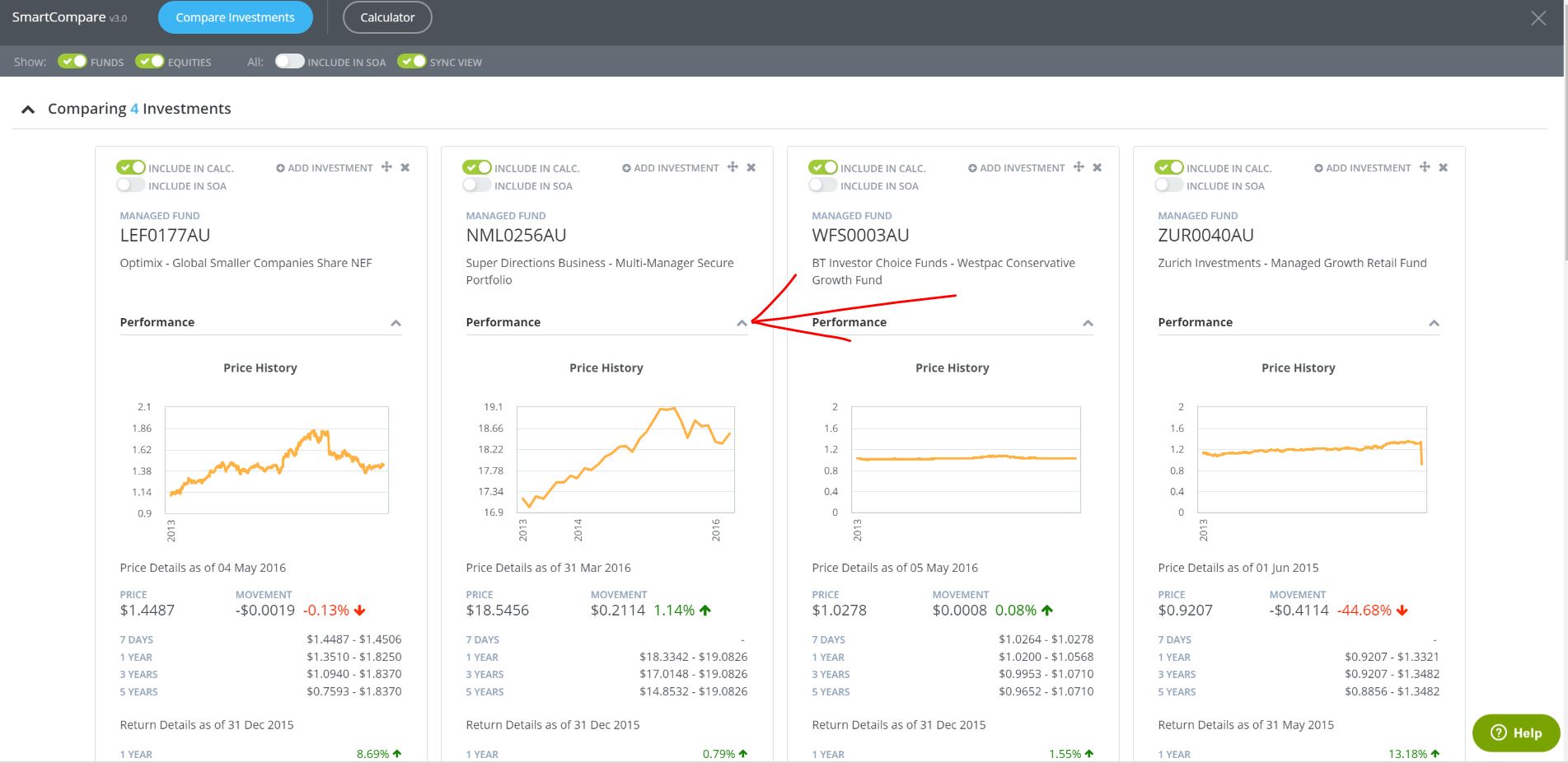
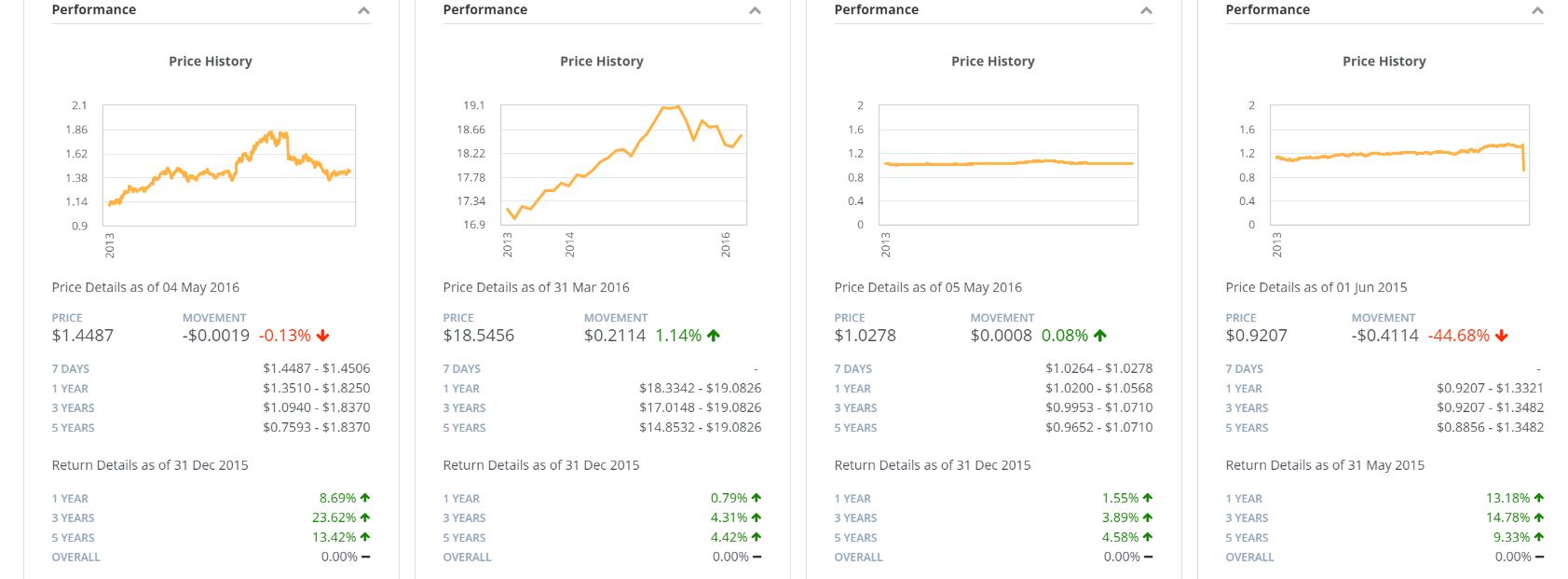
From here you can view:
Asset Performance
Fees and Charges
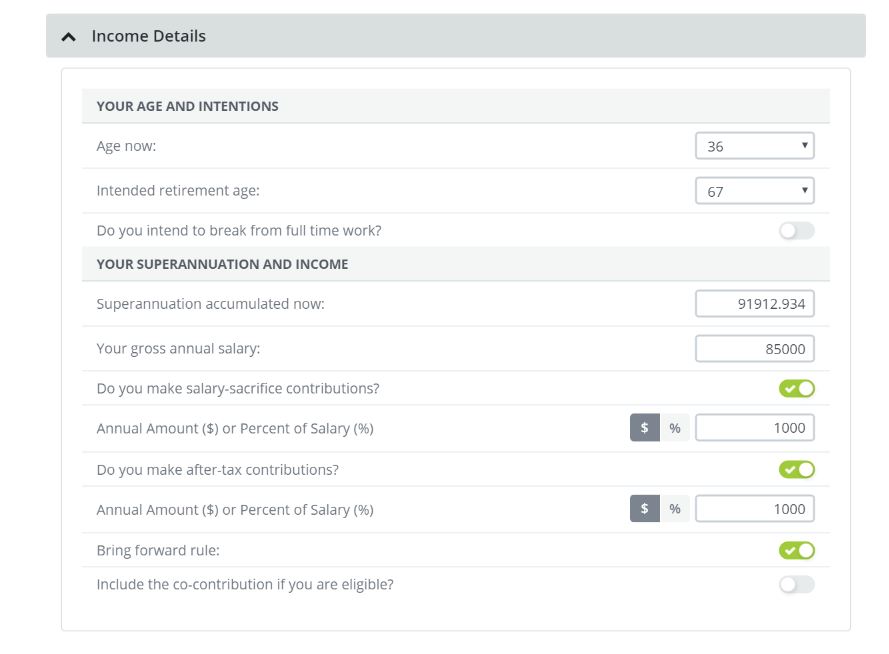
Instantly calculate the outcome for your client

The calculator is quite expansive and allows you to set the comparison and outcome that you desire for your client including items like;
- Break from work
- Salary Sacrifice options $ or %
- Non-Concessional options $ or %
- Retirement age options
- Income details
You can also set up your assumptions for the comparison
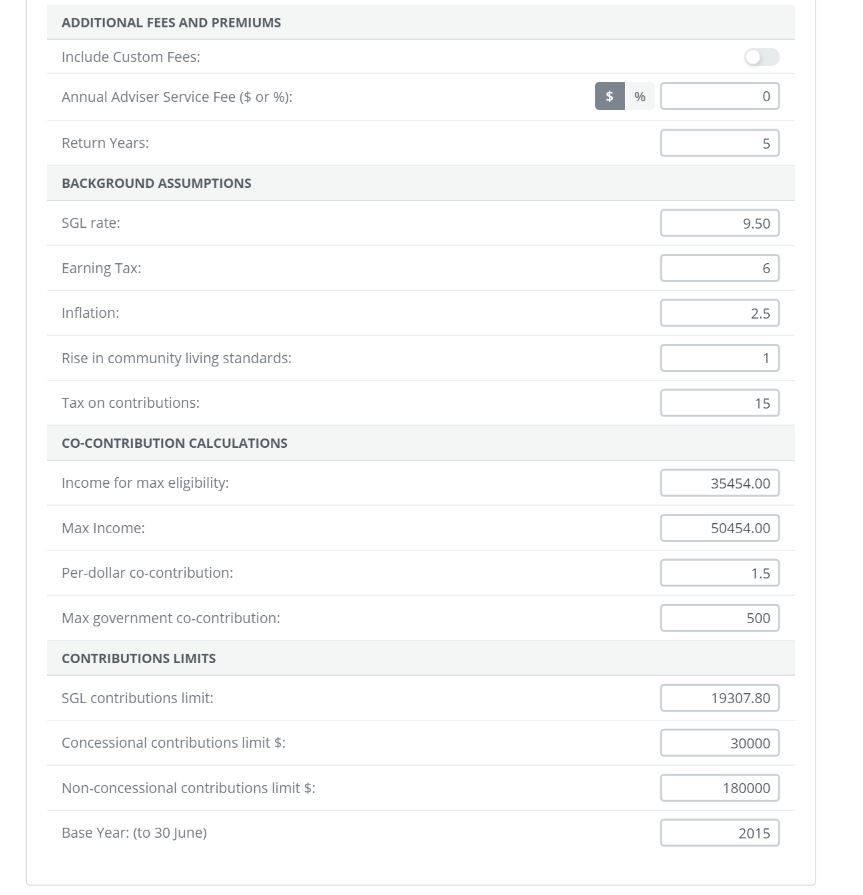
Then once you have completed this simply click on the calculate button
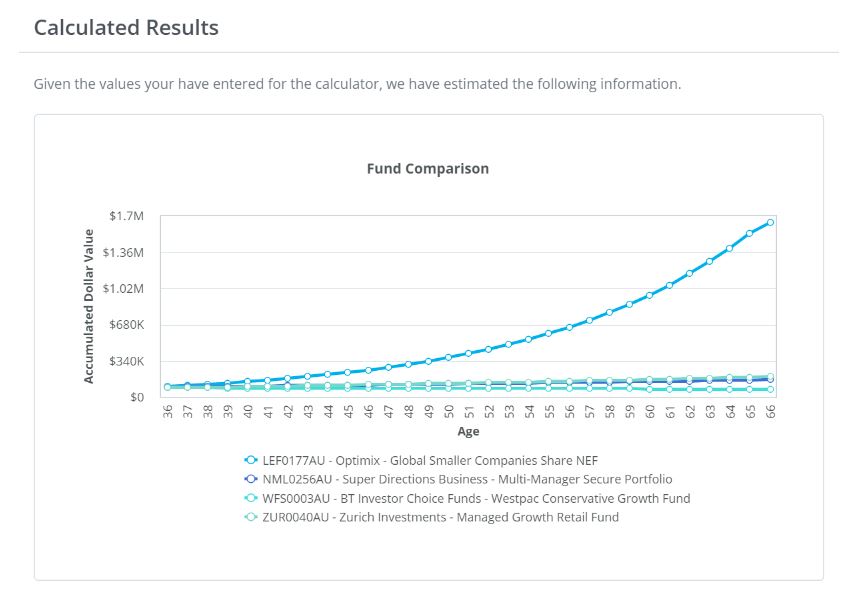
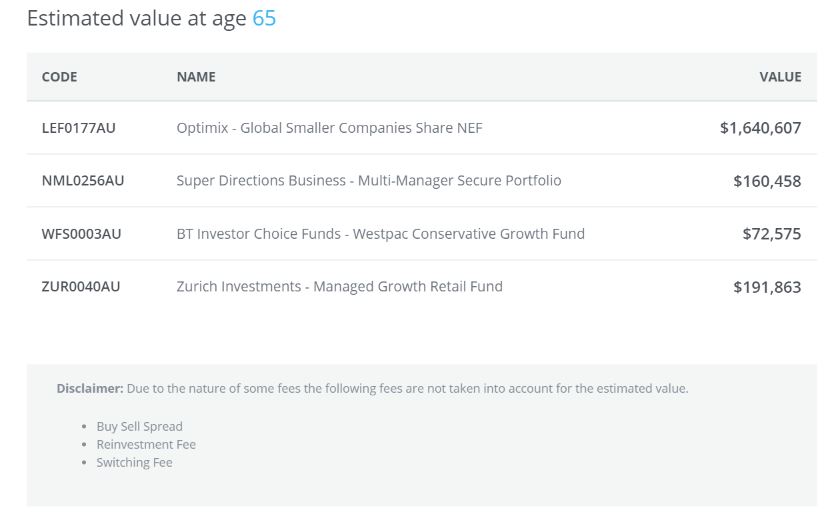
0 Comments